Showing posts with label Blogging. Show all posts

Thursday, August 23, 2012

PUTTING A CODE BOX IN BLOG POST

Ever You ask yourself that how to add code box in the middle of blog post?

There many ways to put  code box, Now I am gonna tell you 2 way of them,
I will give you the simple method which better for new bloggers (like me),
and a advance method who is professional blogger.

The simple method:

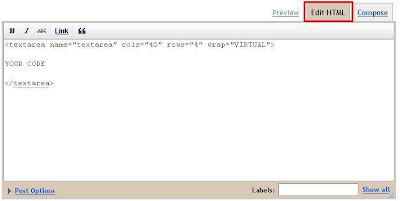
Just Type the code below in your post in HTML mode


<textarea name="textarea" cols="40" rows="4" wrap="VIRTUAL">
YOUR CODE 
</textarea>


Giving an image for instruction:


And here are the results


Now its for the professional one:

1. Edit your Template going Blogger Dashboard > Template > Edit HTML

2. find the code  ]]></b:skin>

3. Now add the code Above of ]]></b:skin>

.code {
  background:#f5f8fa;
  background-image:url(https://blogger.googleusercontent.com/img/b/R29vZ2xl/AVvXsEg4v7M_mcJDiut8zWYlvq2KsK_lI5_O3S1nIQawcKGIjEaWF4vyyUHwdLCJtHcLzhIr9_pZ-VR33_m1g5tdMiOuzHGjJZHXBwb69sKkvu24RhAnC-hUIklyOAIv01k5OlVer-dvdsyLtCI/s640/KAGAYA045.jpg);
  background-repeat:no-repeat;
  border: solid #5C7B90;
  border-width: 1px 1px 1px 20px;
  color: #000000;
  font: 13px 'Courier New', Courier, monospace;
  line-height: 16px;
  margin: 10px 0 10px 10px;
  max-height: 200px;
  min-height: 16px;
  overflow: auto;
  padding: 28px 10px 10px; width: 90%;
}

.code:hover {
  background: #FAFAFA; background-image:url(http://i142.photobucket.com/albums/r99/nilarimogard/o7t4j9.gif);
  background-repeat:no-repeat;
}

4.  Now click  save template
5. Now make a new post and on your post just put the code given below
with your code that you want to put on code box ( in HTML mode)


<div class="code">
your code
</div>

here is the result:
Your code here
 
Note: You cannot see the Professional Code Box on your post editor, so you'll have to save it and view the post from your blog.


CONTROL THE NUMBER OF LABEL POSTS

Every one know that if we click on a label we will redirect to this label page
and we will see the all post of this label. Now I am gonna tell you the secret of
controlling this number of posts .

Now Follow the steps:

1. Go to   Dashboard > Template> Edit html
2. Find out


<a expr:dir='data:blog.languageDirection' expr:href='data:label.url'>


3.Now simply replace


<a expr:dir='data:blog.languageDirection' expr:href='data:label.url'>


with

<a expr:dir='data:blog.languageDirection' expr:href='data:label.url + &quot;?max-results=5&quot;'>


5 stand for the number of posts per a label. Change it to any number
( number of posts that you are willing to show in the label page )
Now save your template.

Monday, August 20, 2012

Animated Recent Post Gadgets...

Recent posts Gadget is most essential element for a website to increase page
view. I am now want give the codes to put a Recent posts gadget in your
Own website or blog site.


How to put fb like box on my site?

Facebook is a international social network.
You can get like and share your site through Facebook. So, To make your site
searchable for search engine, you must get like and share your site with
Facebook or other social networks.
Now i am gonna tell you the easy trick to add Like box to your site.
Just follow the steps given below,

1.  Sign up on Facebook.

2. Now you have to go to this link 
http://developers.facebook.com/docs/reference/plugins/like-box/

3. Now input your own information and click on get code.

[ you can edit your like box]

4. It is the final step, just log in your blog site and go to
 Dashboard>>layout>>add a Gadget
and copy and paste your code and save it.


Buddy, you can see now a fb like box to your site, enjoy

If you will face any problem, you can inform me keeping comment.

Saturday, August 18, 2012

Easy way to add share button to your blog site...


For share your website and it's contents You must add  share buttons
(google+, Facebook share, Yahoo share, Likedin, Pinterest etc)

You have to give the way to people to share your site and contents.

You can add share buttons from many sites.
 But I want to suggest you to go to the site named sharethis.

1. click on "GET SHARING TOOLS" option from this site.

2.Then select your platform  like "blog"

3. Now in the style step choose a button style and click next step.

4.Now your are in the customization  step,  Then select the buttons you want
to add.


Now its Your turn buddy.
You have to finish this job, its very easy.


Add a FavIcon to blog site...

Its very simple to add a FavIcon to blog site but too important for blogger.


I want to tell you the direct form to ad a FavIcon to you blog site.


  1.  1st You have to go to the FavIcon site

  2.  Now select and Download a Favicon to you computer
        you can also create a new favIcon for you site.

  3. Now you have the FavIcon
    To put this on you site just log in to blogger
    Go to Dashboard >> layout
   now click on Edit option on FavIcon  gadget

 Then upload your FavIcon that you saved


Be patience for 1 or 2 day for see your FavIcon.

A beautiful search engine for your blog...


To make your blog beautiful and search into your own blog ,
I suggest you to keep this search engine code.


     Follow the steps:

         1. Log in to blogger
            go to  Dashboard >> layout >> add a gadget


       2. Now just copy the code given below and paste into "add a gadget" windows.


Add a facebook fan page gadget to your blog...

I want to say something to the new bloggers.
To increase your blog site's publicity you should put a gadget in your blog site named fb
fan page.

Its very easy to put.

Now just follow my steps

1. 1st log in to blogger, Dashboar >> layout >> add a gadgets..

2. now just put the code into the gadgets windows.. the code is given below..


     <iframe allowtransparency='true' frameborder='0' scrolling='no' src='http://www.facebook.com/plugins/likebox.php?href="https://www.facebook.com/pages/Basic-Tunes/188227754643949?ref"=hl;width=230&amp;colorscheme=light&amp; show_faces=true&amp;stream=false&amp;header=false&amp;height=300' style='border:none; overflow:hidden; width:230px; height:300px;'/></iframe>


3. Now just replace the code with the url of your facebook fan page...

[ note: You must create a page on facebook, the  go to your page and copy the url from your
browser, then replace the code with red colored code]


If you think Its helpful, please comment and tell the problems you faced,
I'll try to solve.


How to put Chitika and AdSense ads into post body? (correct solution)...

Every blogger describe this trick thats are wrong and will not work.
 I also searched for this solution, But failed, I was succeed after hard work,
I will describe how to add your Chitika and AdSense ads into post body.
But the code you have get from Chitika or AdSense will not help you to put ads into
middle of your post. Its only allows you to add the ads at the left or right or the
center of your post.

Many bloggers are want to know this tricks because of increasing their money earning.


Let me describe the steps;

             1. First you should go to your adsense or chitika account and grab the code
                 for ads

             2. To do this You have to sign up to these sites.
             3. Then you have to parse/ convert your code

            to parse the code go to the link            Click to parse


             4. copy the converted code.
             5.Now go to your blog >> Dashboard >> Design >> Edit HTML  and
             click on  "Expand Widget Templates"


            6. Then press "ctrl+F" on your keyboard and locate the code given below

                 platform.linkedin.com

            7. Now add the ads code to this codes like this,

               <div style='float:left;'>
                 Your parsed ads code here
              </div>
             8. Now put the code after the code that given to the image below:

    
 If can't understand please see the image below:


 you have almost done.
  now go to posts and open a post and see your ads.

    Maybe its takes like 10 minutes to show your ads.